PDF Organizer
Drag the pages of your PDF into order, delete the ones you don't need, copy one or bring in pages from another PDF. You get one PDF back. Free, in your browser.
Drop your PDF here
or browse your files. Any number of pages
Organize your PDF
In one PDF, or several
Out one PDF, pages in your order
Nothing uploaded
No watermark, no sign-up. The pages stay on your device.

How to organize a PDF
1
Drop your PDF
It opens in the editor, and the strip under the page shows every page of it in its order.
2
Put the pages in order
Drag a page along the strip to move it. Its two buttons delete it or copy it, and another PDF dropped in adds its pages at the end.
3
Download
PDF is already picked. One PDF comes back, its pages in the order of the strip.
What the strip of pages does
Each change below was made on our sample, a youth soccer team's five-page packet put together in the wrong order, and read back from the PDF that Download saved.
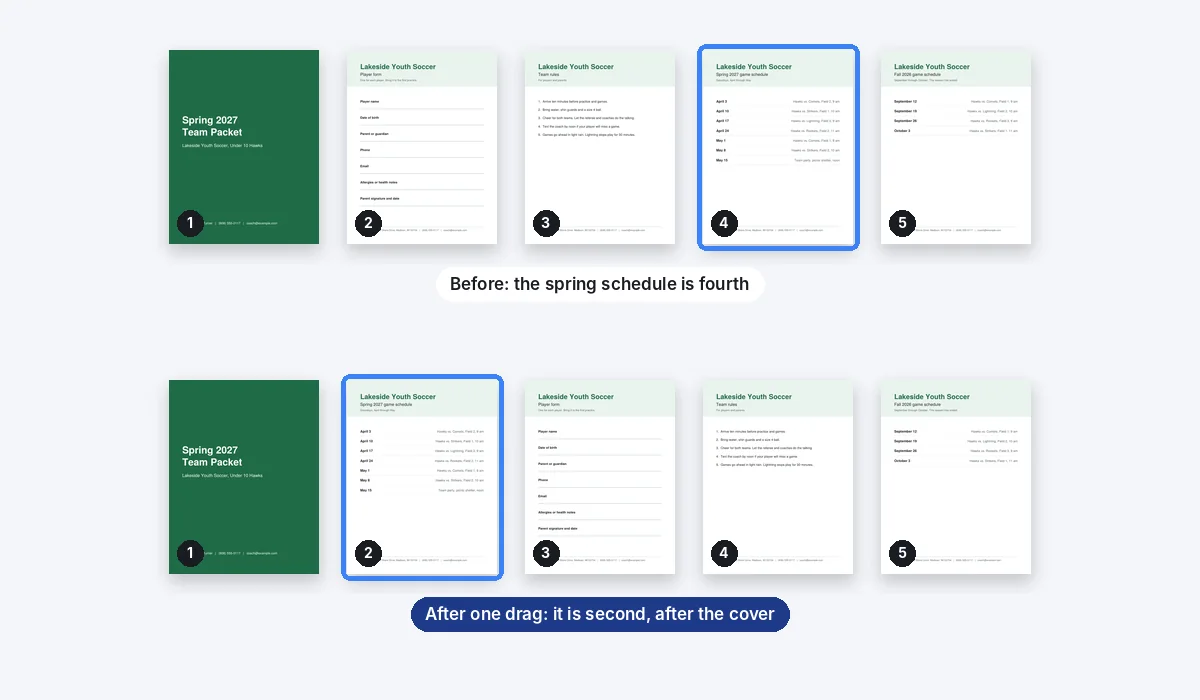
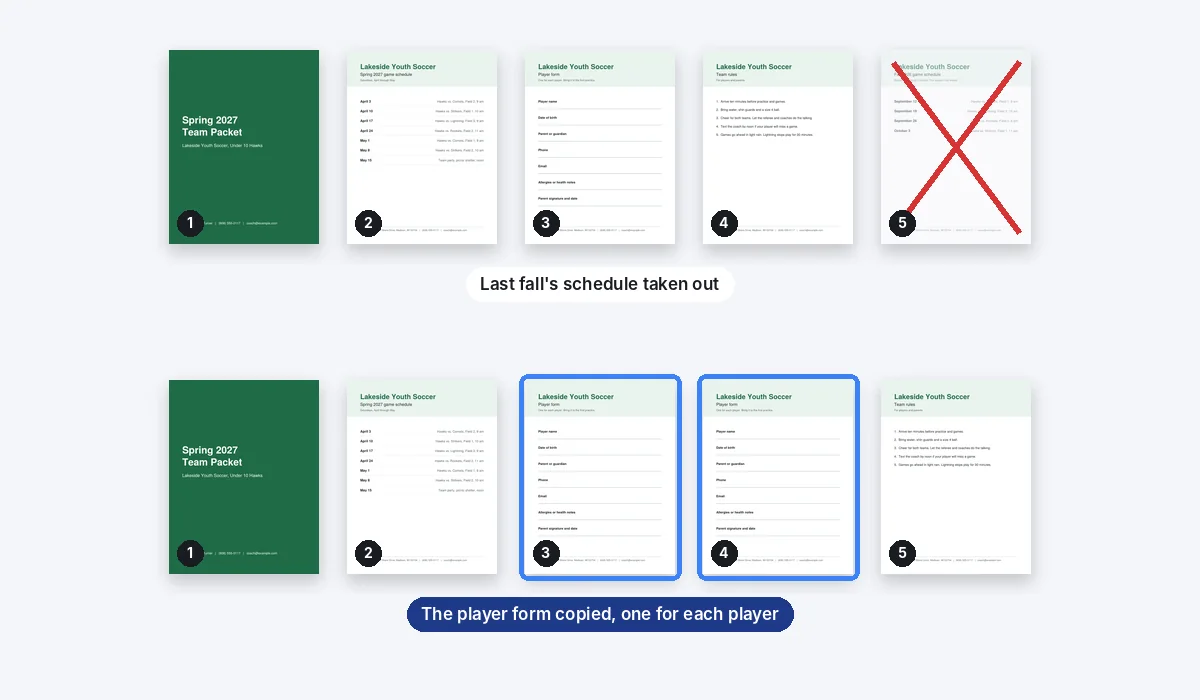
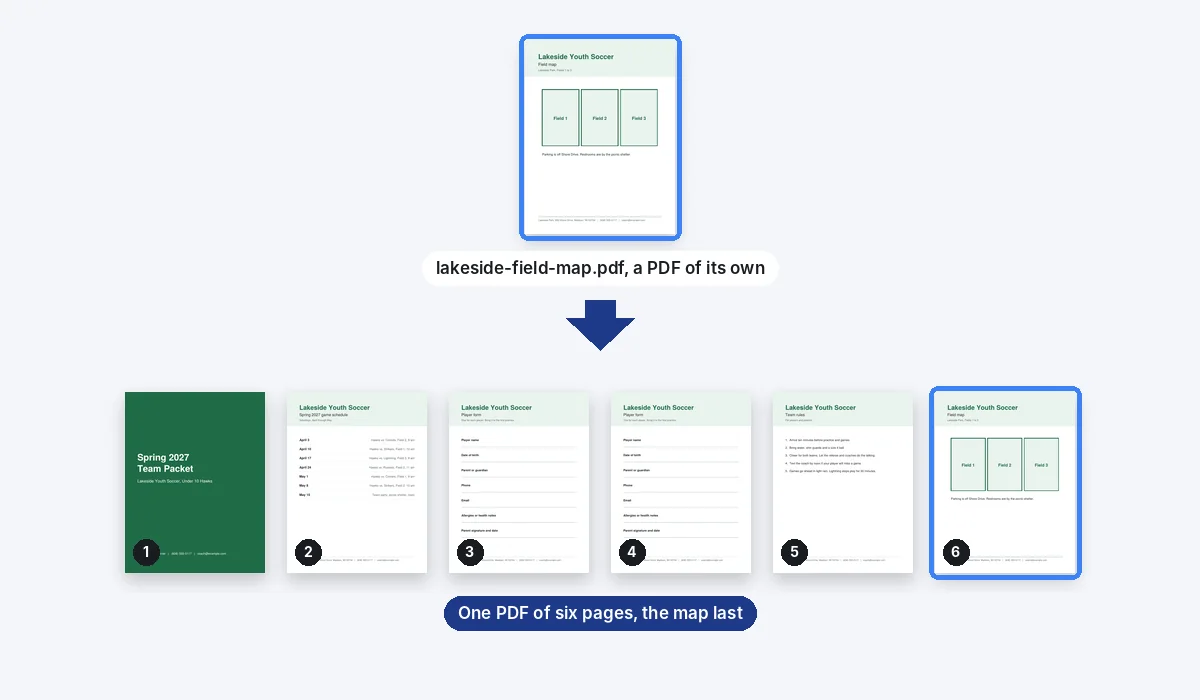
Pages are copied from your file as they are, so their text, links and sharpness do not change. Our packet went in at 6 KB and came out at 4 KB.
A single page can not be turned yet: one that is sideways in your PDF stays sideways.
The download is always one PDF. To save part of it on its own, delete the pages you don't want first.
More for your PDFs
Every tool below opens the same editor, from a page of its own.
Questions
How do I organize the pages of a PDF?+
Drop the PDF here. Its pages open in the Compix editor, all of them in a strip along the bottom, where you drag, delete and copy them. Then press Download, with PDF already chosen.
Is this PDF organizer free?+
Yes. There is no account to make, no watermark, and no cap on the number of pages.
How do I move a page?+
Press it in the strip and drag it along. A blue line shows the gap it will drop into, and holding it near either end scrolls the strip, so a page can travel the whole length of a long PDF.
Can I delete a page or make a copy of one?+
Yes. Each page in the strip has two small buttons: one takes the page out, the other puts a copy of it right after it. Our packet lost last fall's schedule and gained a second player form that way. The PDF page remover page has more on taking pages out.
Can I add pages from another PDF?+
Yes. Drop the second PDF on the editor, or add it with Upload files in Your work. Its pages join the end of the strip, ready to be dragged where they belong, and the download is a single PDF. Our field map became page six of the packet.
Can I add a blank page?+
Yes. + Add page puts an empty one at the end, the size of the page you are on. Drag it into place, and leave it empty or put words on it.
Can I rotate a page?+
Not yet. No button turns a single page, so a page that is sideways in your PDF stays sideways in the download.
Can I split a PDF into several files?+
Not here: Download always saves one PDF. To keep only a few pages, delete the others and download what is left.
Do my pages lose quality or text?+
No. Each page is copied from your PDF as it is, with its text, links and pictures, so it stays sharp and searchable. Every word of our organized packet could still be found, and the file came out at 4 KB from the 6 KB we dropped.
Does it work on a phone?+
Yes, in the phone's browser. The strip runs along the bottom of the screen; hold a page still for a moment, then slide it to its place. A quick swipe scrolls the strip instead.
Can I change the words on the pages too?+
Yes, in the same editor. Double-click a line to retype it, or add text, a logo or a signature. The PDF editor page has the details.
Are my files uploaded?+
No. Your PDF is opened, put in order and saved within this browser tab, on your device. Nothing is sent to a server for that. If you sign in to save your work, the design is kept online so it opens on any device.
Drop a PDF to put its pages in order
No account needed to edit and download. Sign in when you want to keep the design.
Drop your PDF here
or browse your files