Compare AI Generated Images
Stable Diffusion, Midjourney, Flux & ComfyUI
You generated 40 outputs. Now actually compare them.
You tweaked the CFG scale. Changed the sampler. Tried three different LoRA weights. Now you have a folder of outputs and no good way to tell which one actually won. Drop them all into Compix and let your visual system do what it was built to do: detect change.
SEE IT WORK
Your best generation, without the memory test
Side by side, you compare from memory and the small differences never surface. Alternated in place, the only thing that moved is the only thing moving.
Tabbing between browser windows is not a comparison method.
You open output_0042.png. You open output_0043.png. You alt-tab. You alt-tab back. You think the second one has better skin texture, but by the time you're looking at it, you've already forgotten the details of the first. So you alt-tab again. Repeat until you give up and pick the one that "feels" right.
What you're actually comparing
A current perception against a decaying memory. Human visual memory degrades in under two seconds. Every alt-tab comparison is a comparison between what you see now and what you approximately remember, not what was actually there.
What blink comparison does instead
Shows both images at the same pixel coordinates in rapid succession. Your visual system compares them directly, not through memory. Differences appear as visible motion, the same mechanism that lets you spot a typo when you read something twice.
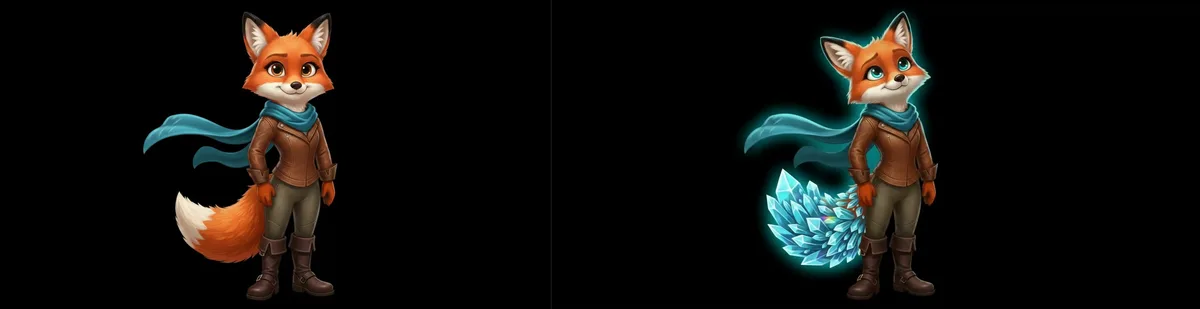
Anchor image (left) vs. AI variant (right): blink between them to catch every difference.
From folder of outputs to best pick in 90 seconds
Works with any generator. Any output folder. Any format.
Set your anchor
Drop your reference or strongest candidate as the anchor. This is what every variant blinks against.
Load your batch
Select your whole output folder and drag the images in at once. Up to 50 outputs: different seeds, LoRA weights, CFG scales, samplers, or upscalers.
Blink, diff, or split
Blink at 200ms to catch any difference instantly. Pixel diff heatmap shows exactly what changed. Split wipe lets you inspect specific regions at full resolution.
Dismiss the losers
Right-click to dismiss weak outputs. Survivors stay organized. Export them or take them back into your generation pipeline.
Built for the way you actually generate
Stable Diffusion / AUTOMATIC1111
Running 20 seeds on the same prompt? Drag your entire outputs/txt2img folder in. Anchor your favorite and blink through the rest. The one with the best composition will pop: you'll stop on it without even thinking about it.
ComfyUI workflows
Testing two node configurations that produce subtly different results? Save both outputs, drop them in, run pixel diff. The heatmap shows exactly which regions changed, not approximately where you think they might have changed.
Midjourney
Save your grid variations as individual images or use the U buttons to upscale first. Drag all four variants in and blink between them. Which V variation actually improved on the original? Two seconds of blinking makes it obvious.
Flux models
Flux outputs are often subtler than SDXL: differences in detail, sharpness, and composition need precise comparison. Blink at 300ms gives your eye enough time to register each version. Pixel diff verifies that a guidance change actually produced what you expected.
LoRA weight tuning
Is 0.6 or 0.8 right for your character LoRA? The difference is often subtle: detectable by blink but invisible side-by-side. Load both and blink at 500ms. Your eye locks onto the stronger face, the better skin, the more accurate detail.
Upscaler comparison
ESRGAN vs SwinIR vs 4x-UltraSharp look similar at thumbnail size and completely different at 100%. Pixel diff heatmap shows exactly where each algorithm diverges. Split wipe lets you examine the regions at full resolution. See also: dedicated upscaling comparison page →
Every existing method has one critical gap
| Method | Compix | Alt-tab / file browser | Side-by-side viewer | Online sliders |
|---|---|---|---|---|
| Same pixel location, no eye movement | ✓ Fixed position | ✗ Eye travels between windows | ✗ Eyes must travel across | ✗ Two images only |
| Compares directly, not from memory | ✓ Direct visual comparison | ✗ Always memory-based | ✗ Still memory-based | ✗ Memory-based |
| Load entire batch at once | ✓ Up to 50 states | ✗ One pair at a time | ✗ Layout breaks at 6+ | ✗ Two only |
| Pixel diff heatmap | ✓ Real-time | ✗ | ✗ | ✗ |
| Local processing | ✓ Client-side only | ✓ | ✓ | ✗ Most upload to server |
| Offline support | ✓ Full PWA | ✓ | ✓ | ✗ |
Why blink comparison works — and why alt-tabbing never will
The blink comparator was invented in 1904 and famously used to discover Pluto in 1930. Astronomer Clyde Tombaugh loaded two photographs of the same sky region taken days apart, then rapidly alternated between them. Moving objects (asteroids, comets, planets) appeared to jump back and forth. Stationary stars didn't move at all. The technique exploited a specific property of human vision: our ability to detect change through direct temporal comparison, rather than through spatial memory. The method is also called flicker, and comparison tools still use that name.
This is exactly the property that makes alt-tabbing such a bad comparison method. When you switch windows, your eyes and brain go through a reorientation sequence: finding your place in the new image, building up the scene representation, deciding what to examine. By the time you're ready to make a judgment, the other image exists only as a fading memory. You're not comparing two images. You're comparing an image to a reconstruction.
Finding the right blink speed for your AI workflow
Different types of AI output comparisons benefit from different speeds. For seed exploration , where compositions differ significantly, use 400–600ms. Your eye needs enough time to read each image before the switch. For LoRA weight tuning , where differences are subtle and regional, try 200–300ms. The faster pace makes minor textural differences pop as change rather than noise. For CFG scale testing , where the overall structure may shift, start at 400ms and slow down if the images are dramatically different. For upscaler comparison , where differences are often very fine, combine blink with pixel diff. The heatmap makes sub-pixel differences visible even when they're too small to perceive visually.
From selection to presentation
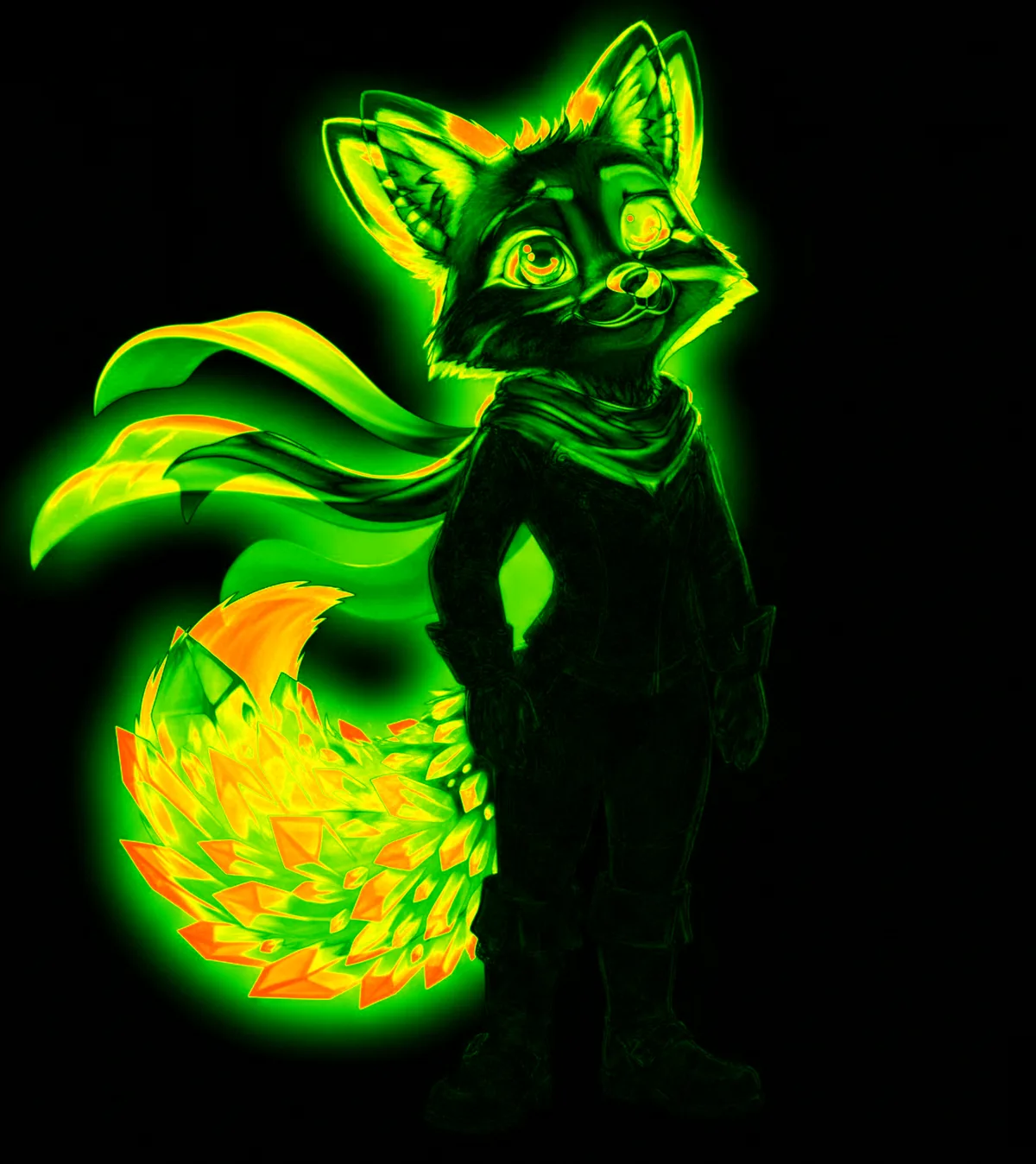
Pixel diff heatmap between two AI outputs: see exactly where different seeds produced different detail.
Once you've identified your best outputs, the Scene Compositor lets you arrange them into a moodboard, reference sheet, or presentation layout, without opening another application. The animation timeline turns any sequence into a GIF or MP4, the format most AI artists use when sharing iteration progress on social media or with clients.
Questions from AI artists
Are my images uploaded to a server? ▸
How many images can I compare at once? ▸
Does it work with ComfyUI output folders and AUTOMATIC1111? ▸
What's the difference between blink, diff, and split modes? ▸
Can I use it offline? I generate locally. ▸
What blink speed should I start with? ▸
Now combine the best parts from each image.
Combine Parts From Different Images
Take the face from image 1, the outfit from image 3, the boots from image 7. Draw freeform shapes on any region: get every possible combination. Combine now →
Create 6,500+ Variations
9 images × 3 shapes = 6,500+ unique character variations. No AI, no GPU, no credits. The full guide to freeform region extraction. See the math →
Detect Character Drift
Blink comparison makes drift impossible to miss. Then extract the best parts from each drifted image. Detect drift →
Scene Compositor
Layer your best outputs into moodboards, reference sheets, or social media layouts. Animate with a timeline and export as GIF or MP4. Open →
Midjourney Workflow
Comparing your Midjourney grid? Combine the best face, outfit, and accessories without re-prompting. Midjourney guide →
SD / ComfyUI Batch
Comparing your SD batch? Skip re-running the pipeline: combine the best regions from outputs you already have. SD workflow →
Stop guessing which output is best. Know.
Load your batch. Blink at 200ms. Your best generation becomes obvious.
Open Compix →